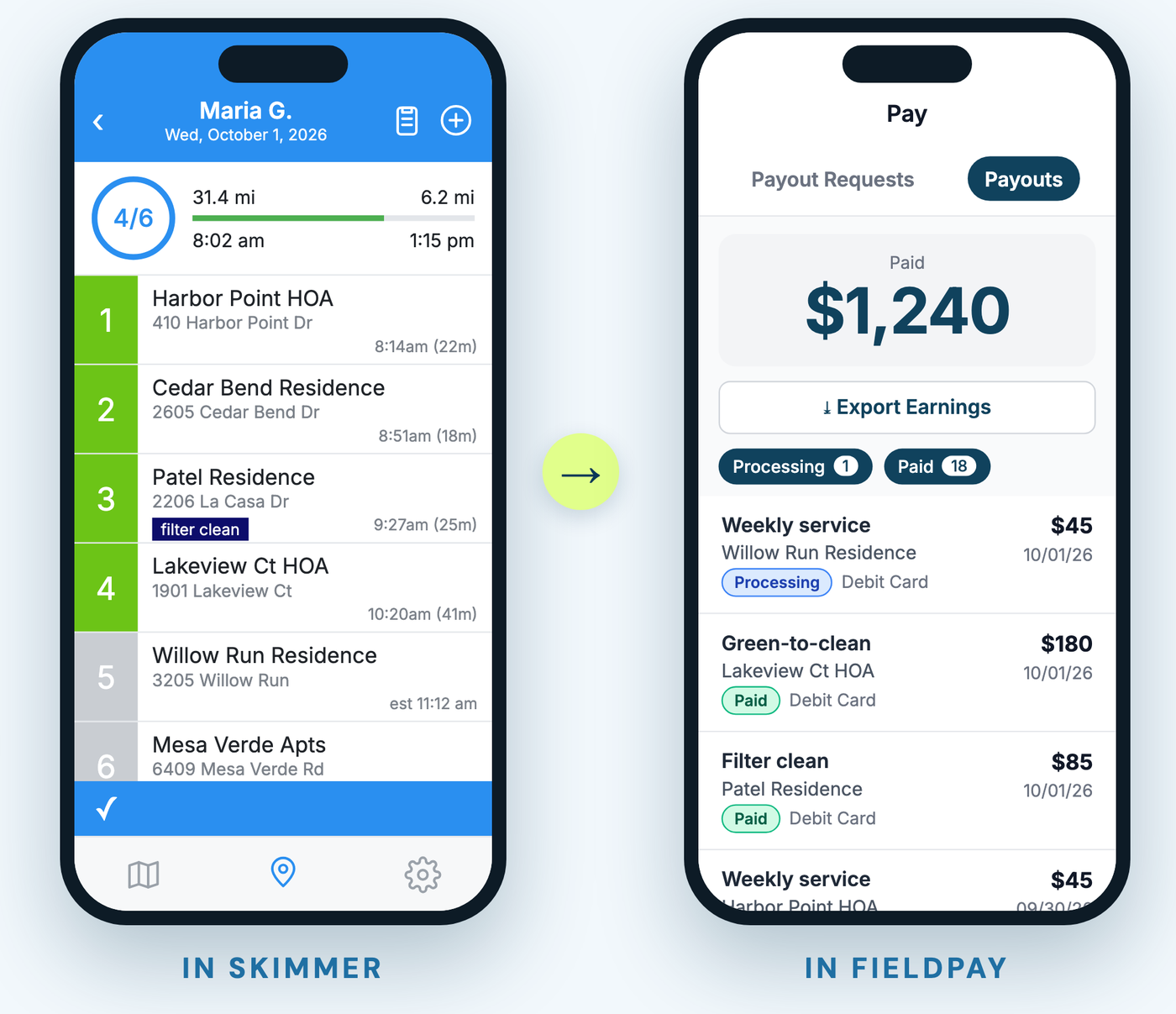
Skimmer already knows every route stop your techs finish and every work order they close. FieldPay's job is to turn that completed work into a payout request — automatically, the same day. Here's exactly how the setup works, screen by screen.
To get there: select the icon with your company name in the upper right corner of Admin, then go to Integrations → Skimmer.
Step 1: Connect your Skimmer account
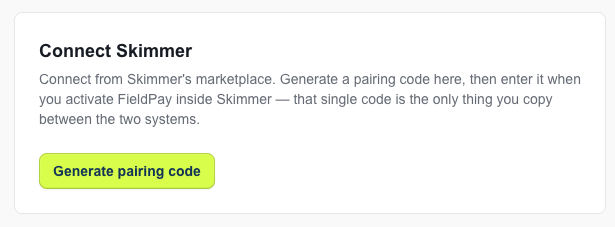
Open the Skimmer page in FieldPay and a pairing code is already waiting for you. Enter it when you activate FieldPay in Skimmer's marketplace. The code refreshes every 30 seconds, so copy it right before you paste it. That single code is the only thing you copy between the two systems, and the FieldPay page updates on its own the moment Skimmer finishes the connection.
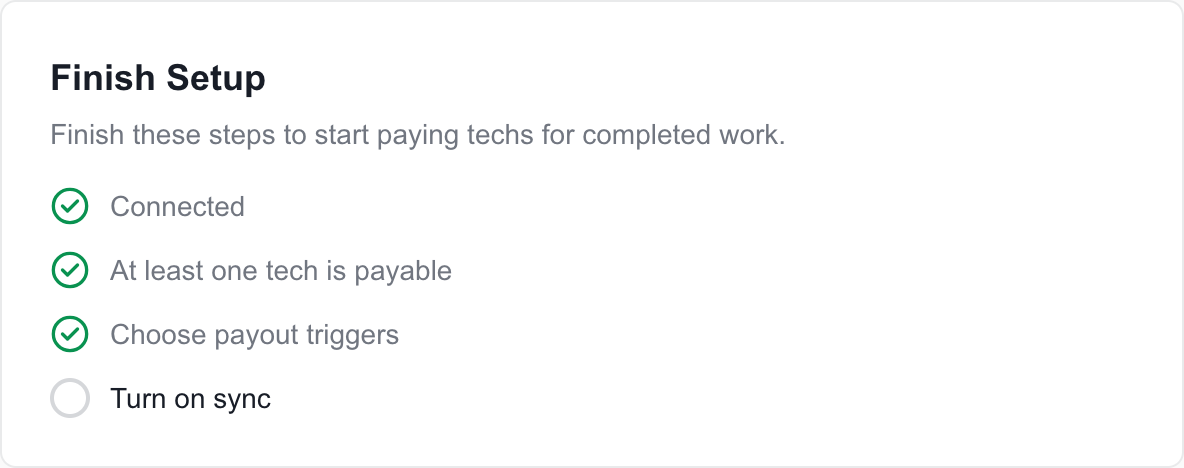
Once you're connected, a Finish Setup checklist at the top of the page tracks what's left: at least one payable tech, your payout triggers, and turning on sync. It disappears once everything is done.
Step 2: Review your techs
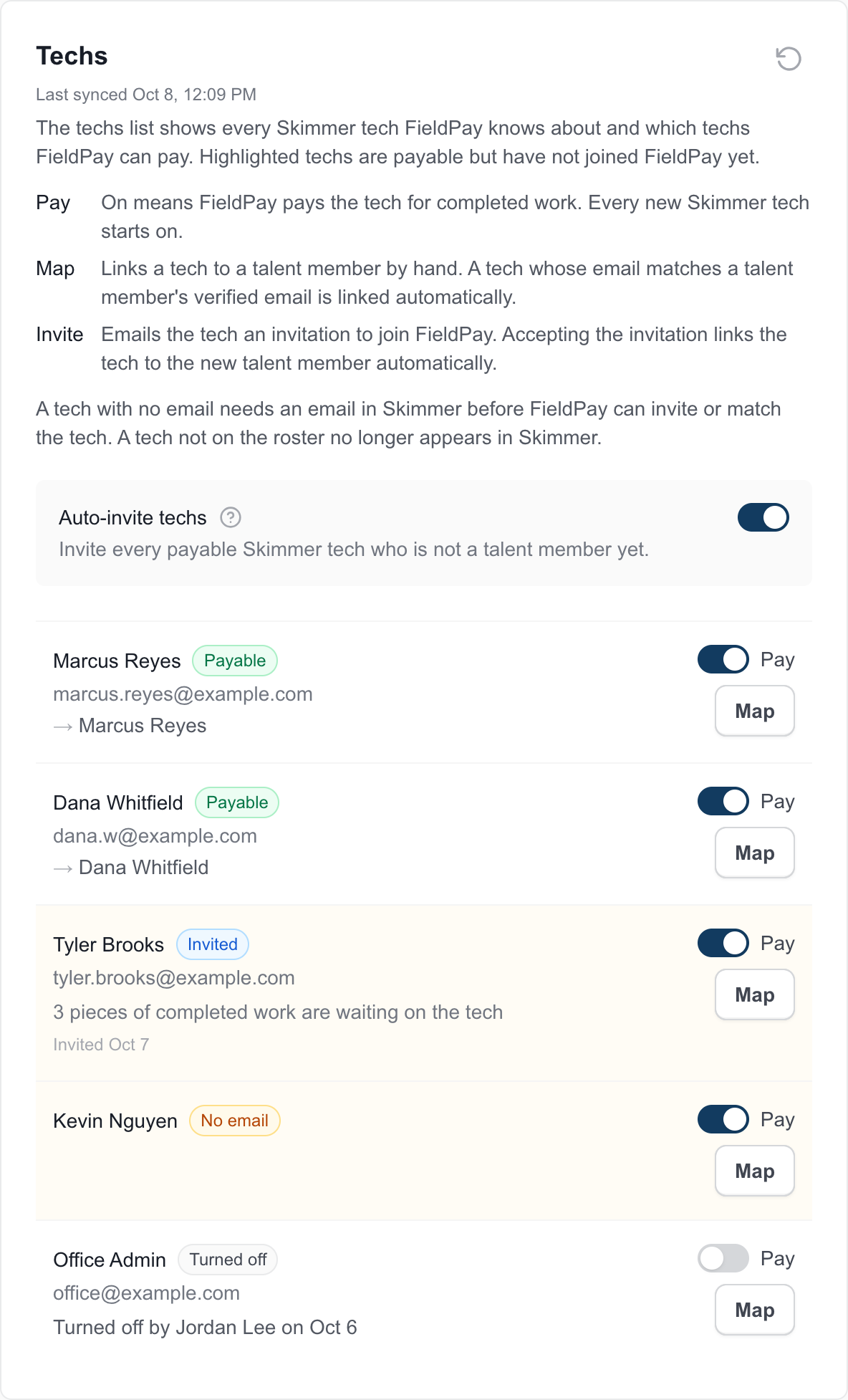
FieldPay pulls in every tech from your Skimmer account and lists them in the Techs card, each with a status:
- Payable — the tech is linked to a FieldPay member and gets paid for their completed work.
- Invited / Not invited — the tech hasn't joined FieldPay yet.
- No email — add an email for the tech in Skimmer so FieldPay can invite or match them.
- Turned off — you've switched Pay off for someone who shouldn't be paid through FieldPay, like an office account.
Techs are linked automatically when their Skimmer email matches the verified email on their FieldPay account. If the emails differ, use Map to link the tech to the right person by hand. Every new Skimmer tech starts with Pay on.
Turn on Auto-invite techs and FieldPay emails an invitation to every payable Skimmer tech who isn't on your FieldPay roster yet — no manual roster entry. You can also invite one tech at a time with Invite. Work a tech completes before joining isn't lost: it waits for them, and their payout requests are created as soon as they join.
Step 3: Choose your payout triggers
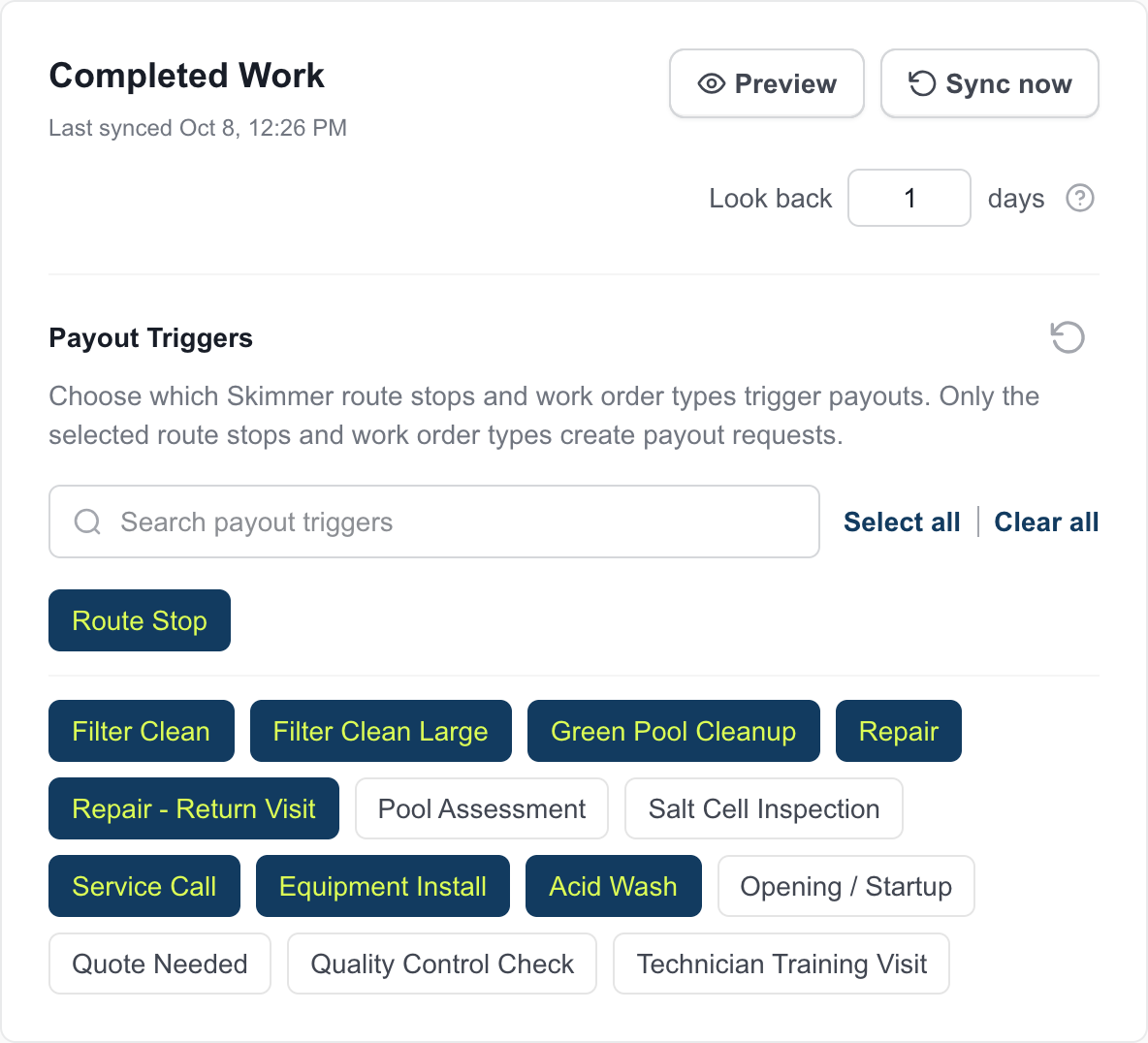
In the Completed Work card, under Payout Triggers, you pick which Skimmer route stops and work order types — Repair, Service Call, Filter Clean, or whatever types you run — create a payout when completed. Route stops are priced from the service location's labor cost, and work orders from the work order's labor cost.
Only the triggers you select create payout requests. Leave everything unselected and FieldPay tells you so directly: "Nothing selected — no work will trigger payouts." Use Select all / Clear all to move fast, or search to find a specific type.
Configure labor costs in Skimmer first. FieldPay only turns an item into a payout request if it has a labor cost in Skimmer at the moment it's completed — set this before you go live:
- Route stops: Customers → Service Rates (upper right) → Configure Labor Cost. Enter the dollar amount and set the labor cost type to Per Stop. A route stop won't sync without both.
- Work order types: Settings → Work Order Types → Labor Cost
Update either one any time before a job is marked complete and the correct amount will sync — nothing to do on the FieldPay side.
Step 4: Preview before you go live
Before anything is created for real, run a Preview. Set the Look back window — how many days of completed Skimmer work to check — and FieldPay walks through that work without creating a single payout request. You see what it found, so you can sanity-check your techs, triggers, and labor costs before anything touches your queue.
Step 5: Choose how payout requests are approved
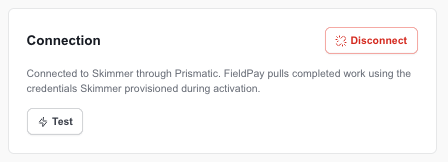
In the Connection card, Auto-approve payout requests decides what happens to each new payout request. Leave it off and requests wait in your approval queue for you to review. Turn it on and they're approved as soon as they're created. The Test button on the same card checks that the link to Skimmer is still live.
Step 6: Turn on sync
Happy with the preview? Flip Sync on in the Connection card. The switch unlocks once you have at least one payable tech and at least one payout trigger. From then on, FieldPay keeps checking Skimmer automatically, and completed work that matches your triggers becomes payout requests. The Last synced time on the Completed Work card shows the most recent pass.
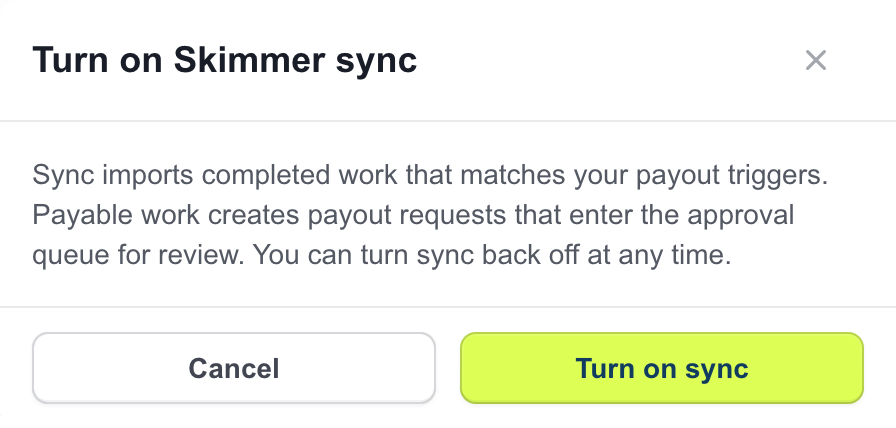
Sync starts from the moment you turn it on. Automatic sync only picks up work completed after sync was turned on — it never reaches back on its own, so going live never pays out old work by surprise.
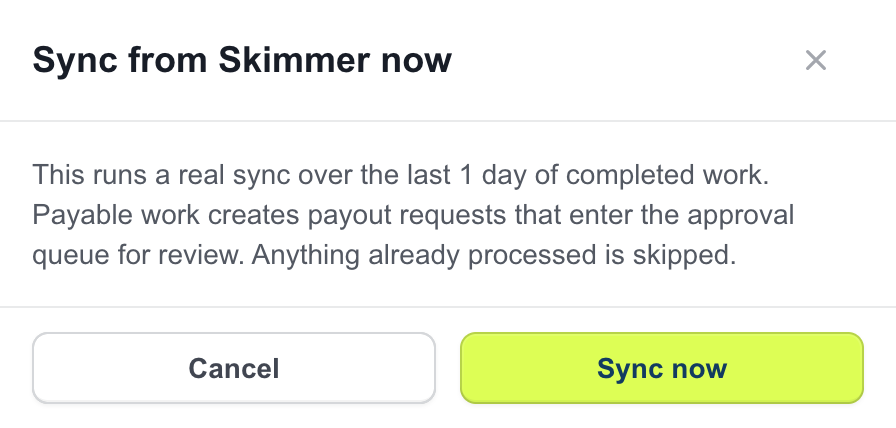
To pay work completed earlier (say, this morning's route before you flipped the switch), set Look back to cover it, run a Preview, then select Sync now. Anything already processed is skipped, so nothing gets paid twice.
What happens after go-live
From here it's hands-off. A tech finishes a filter clean, a repair, a route stop — whatever you've set as a payout trigger. FieldPay creates a payout request with the customer, service type, and amount already filled in from Skimmer's own data. You approve it (or auto-approve does), and your tech is paid on your payout schedule — the same day by default.
If FieldPay can't import a piece of completed work, it retries automatically, and a Sync Issues card on the Skimmer page lists anything that still needs attention.
Next steps
That's the whole setup — connect, review your techs, choose payout triggers, preview, and turn on sync. Want to see it running against your own Skimmer account?